
Introduction To Reports
Updated 7 days ago
Overview
Reports feature in Transcript LOL allows you to create perfectly formatted reports from your audio or video recordings. Here is an example template you can define using our Report template editor
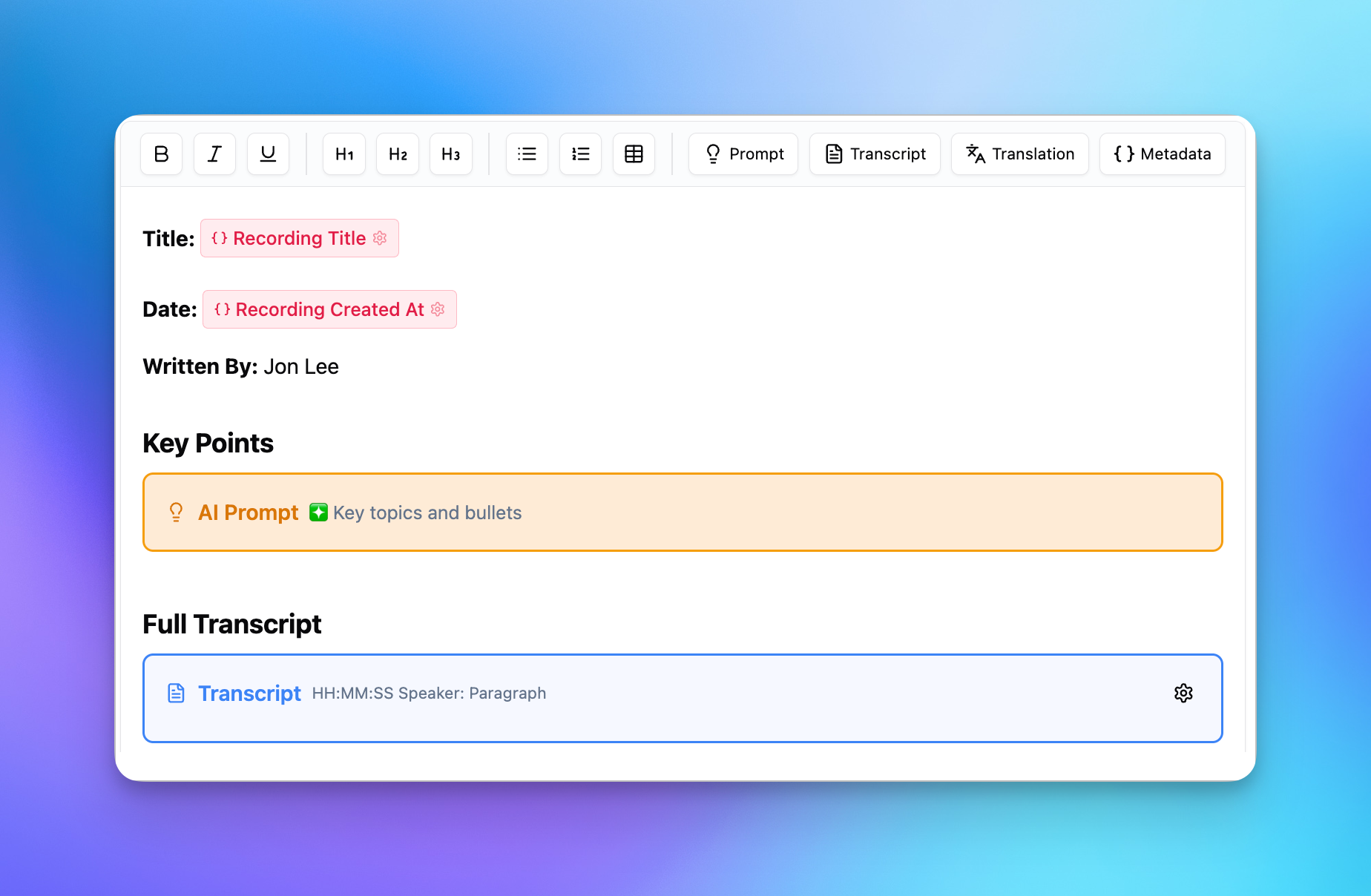
The best part is that it gives you complete freedom in how you create your reports. You can reuse this template on all current and future recordings saving hours each time!
Quick Demo
Here’s a video demo of how the reports feature works in action — from defining a template to getting the final output in just a few seconds!
Compare to Custom Prompts
We have seen a lot of our users define their own custom prompts to get reports in a specific format but here are some problems that custom prompts cannot solve by themselves:
Imagine asking any AI model to generate reports in the format shown in the image above. Without an exception, they will all fail to do the task. And worst part is they will do half a job and call it a day.
Why AI Models Fail
LLMs tend to fail as you increase the complexity of the task
The task is actually lots of smaller tasks disguised as one — so, when it comes to execution, the AI model entirely ignores some instructions
AI models have limited output capacity. This is often much smaller than the typical size of a transcript
Typical AI Model: Maximum 3000 words in the output
Words in Transcript: 3000 words per 20 minutes
We can workaround most of these limitations of AI models by breaking down the task — the task of creating a formatted note, into multiple sub tasks each of which is within the limits of the AI model.
Our new Notes feature is essentially a clean abstraction that takes care of these workarounds and gives users complete freedom in how you like your notes or documents formatted
Getting Started with Reports
Creating Your First Report
You have two options when creating a report:
Start from scratch - Build a custom template from a blank canvas
Use existing templates - Select from pre-built templates or ones you've previously created
To create a new report:
Open any recording in a workspace
Select the “Reports“ tab
Select "New Report"
Select "Start from scratch"
Click "Create report"
Begin building your template using the available features
Building Your Template
The power of report templates lies in its dynamic placeholders that automatically populate with content from your recordings. Here are the key elements you can add:
Transcript
When rendered, it will insert the transcript of your recording into the reports
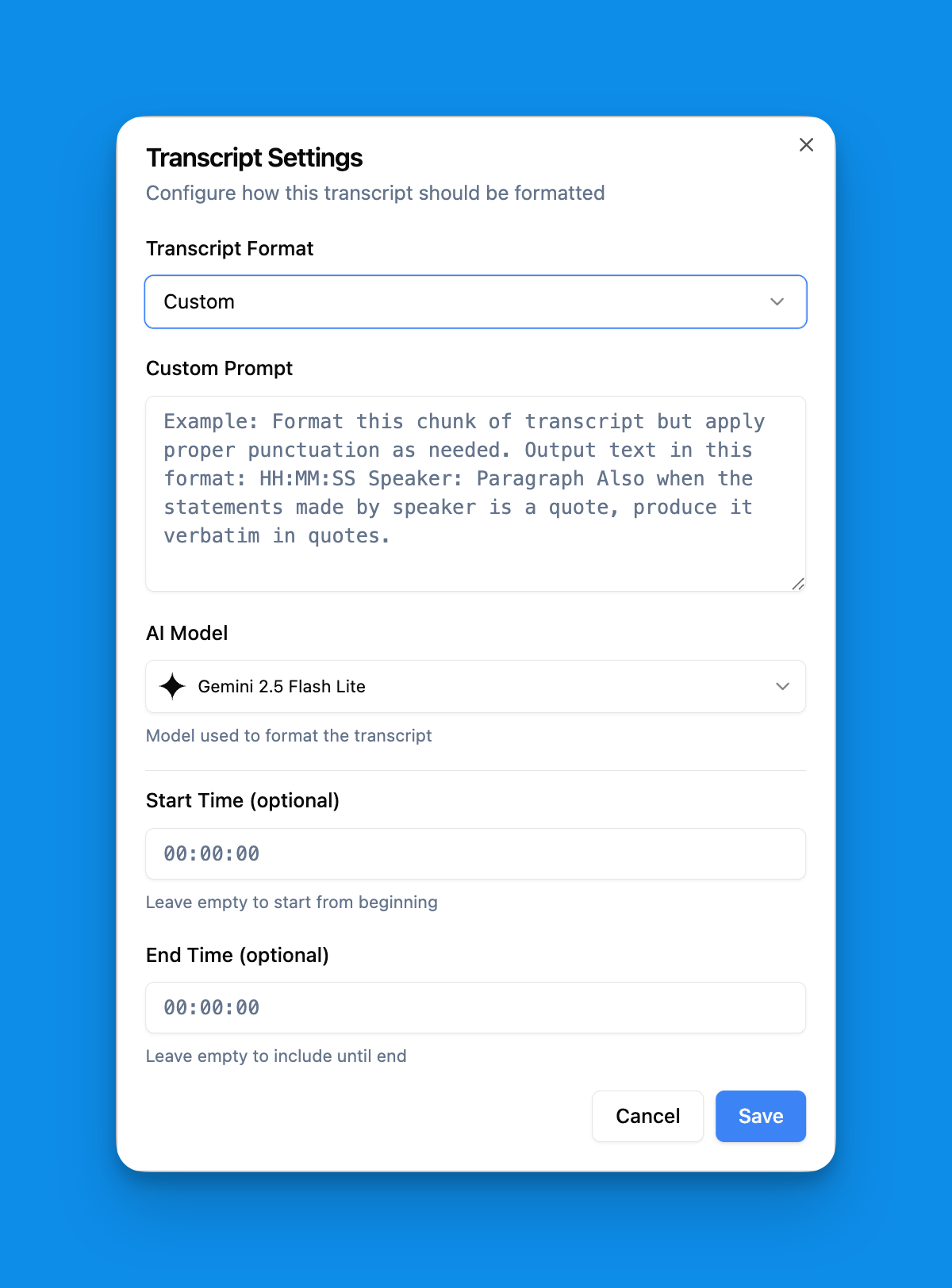
You have following options to customise the transcript
Format:
Defines how you want the paragraphs in your transcript to be formattedCustom Prompt: (Only if format set to “Custom“)
We will run this prompt on each paragraph using AI model to give you full control on how each paragraph is formatted.AI Model: (Only if format set to “Custom“)
The AI model to use for formatting your transcript. The default model is the fastest and works well for basic formatting. But feel free to select other models for better adherence to formatting instructions — it may be slower and more expensive.Start Time: (Optional)
If you want your transcript to start after a certain timestamp — in HH:MM:SS formatEnd time: (Optional)
If you want your transcript to end before a certain timestamp — in HH:MM:SS format
Translation
Inserts a translation of your full transcript into the reports when rendered
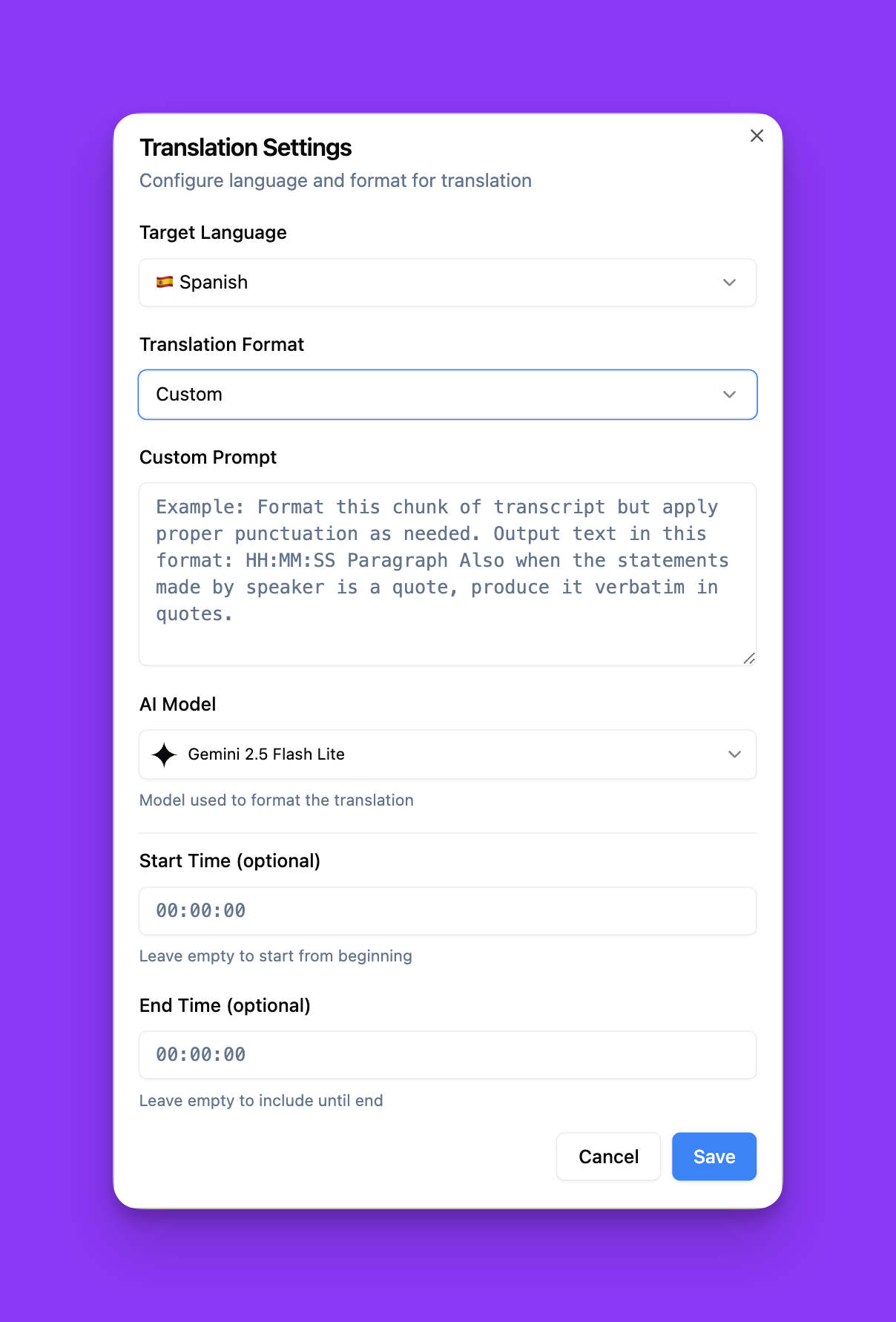
Most of the options work identical to that of transcript options. Additionally you have the language option to select the translation language.
AI Prompt
Runs a prompt on your transcript and inserts the output of that prompt when the report is rendered
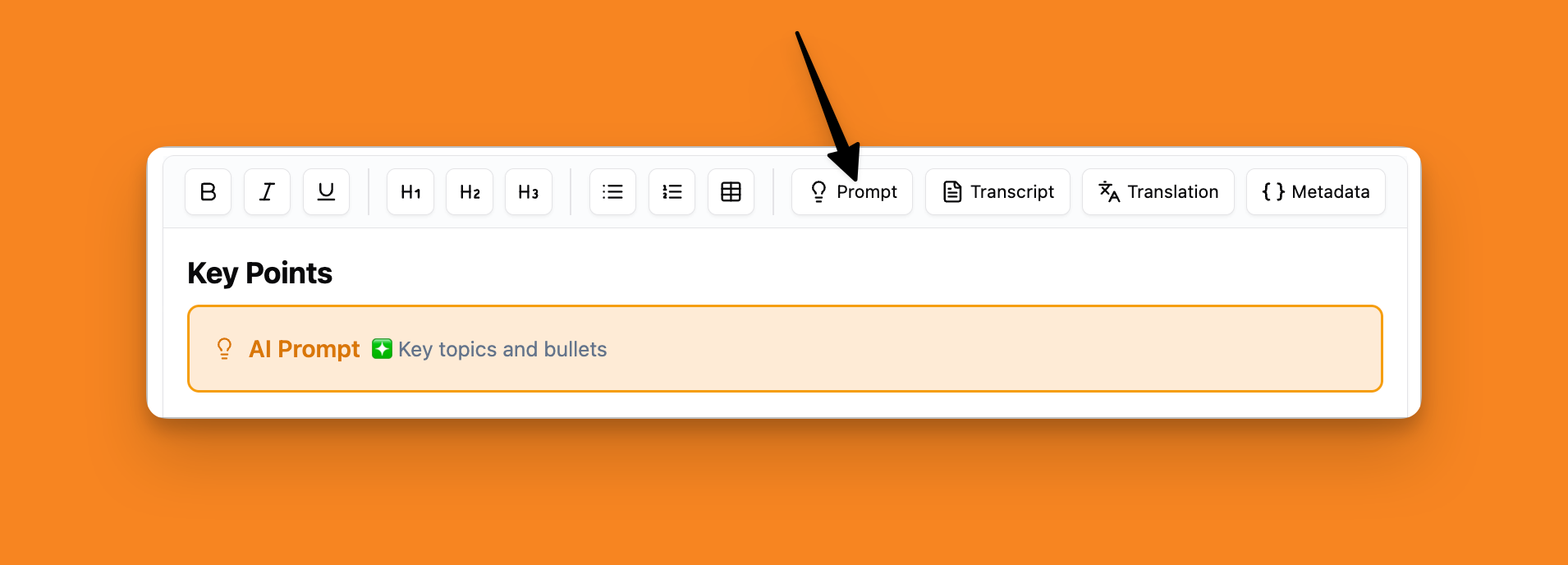
You can select from a library of built-in prompts or define your own custom prompts and use them here
Metadata Fields
Inserts selected information about your recording
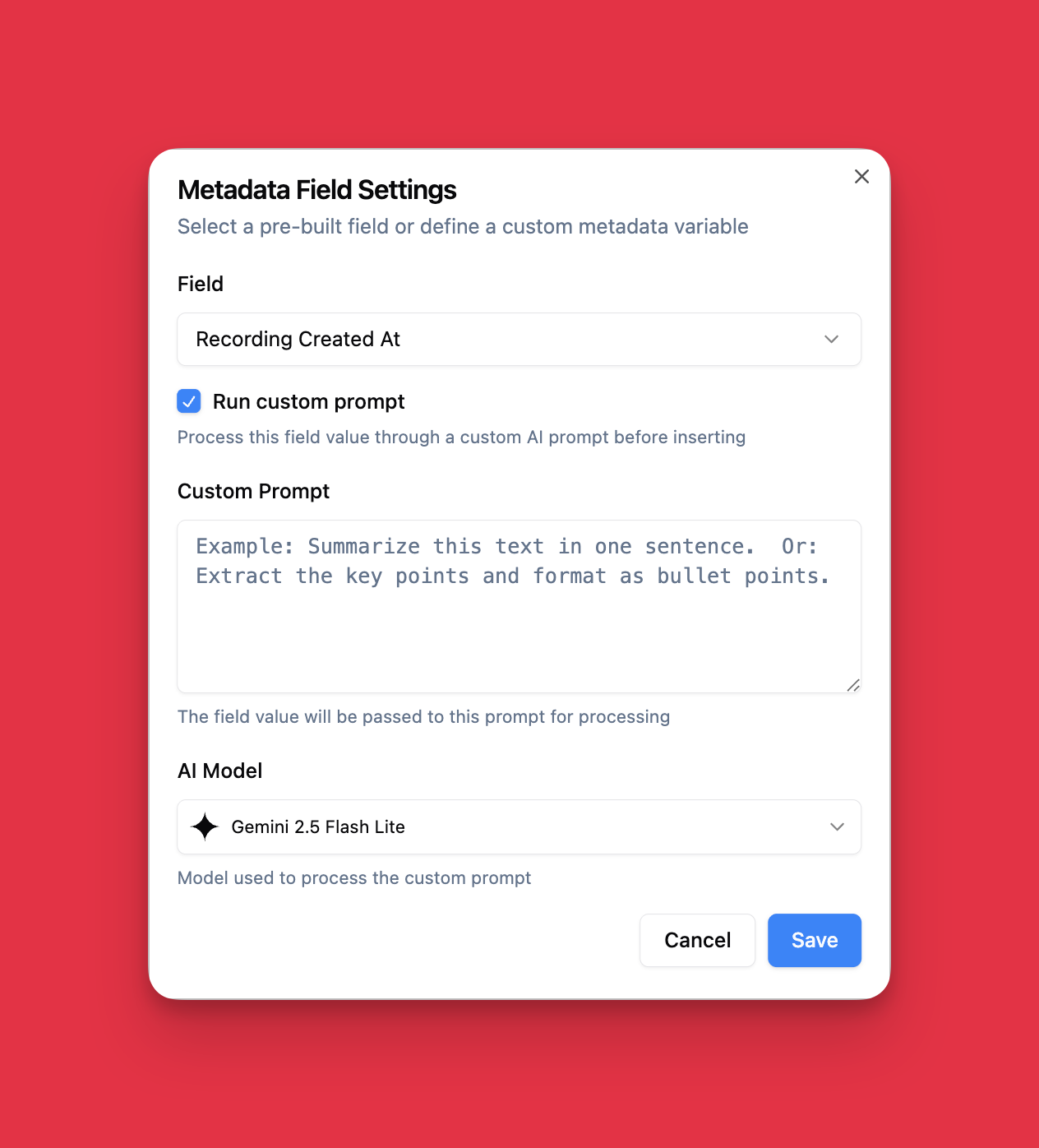
The field can be standard ones like:
Recording title
Source URL (link to original recording)
Creation date
Workspace name
Or Custom fields that can passed by yourself at the time of creating the recording through Zapier or API
Custom Prompt:
You can run a custom prompt on the selected field to define how you want the value of that field to be formatted. This is particularly useful for fields like creation date.
Format this date into this style 31 Oct 2025 18:00
Rendering Your Reports
Once you are happy with structure of your Report Template:
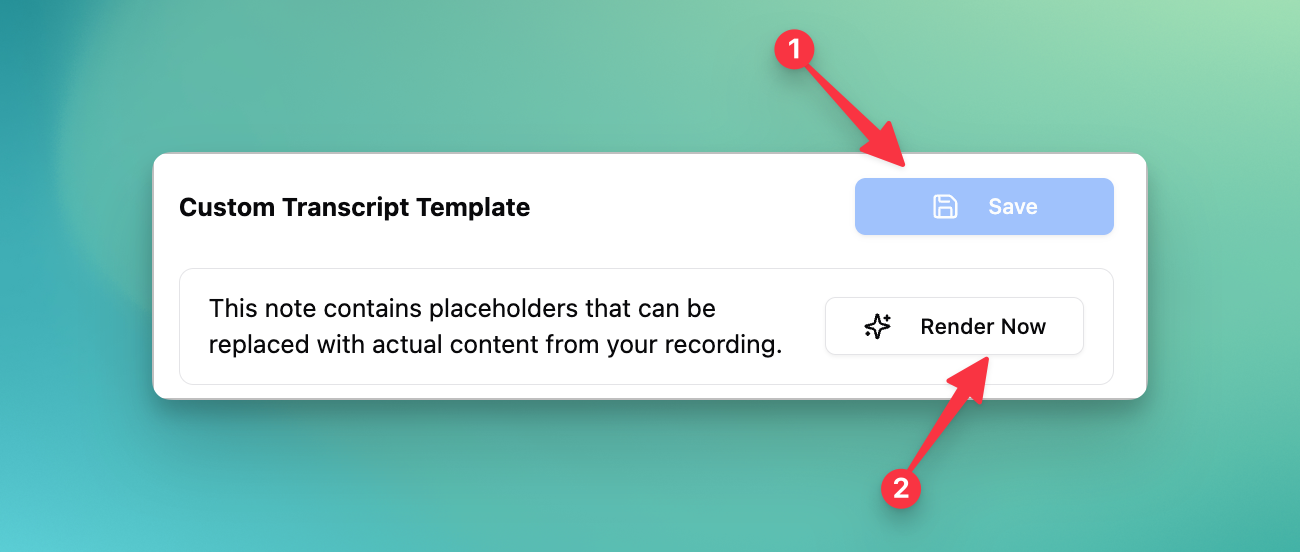
Click "Save" to save your changes
Click "Render Now" to generate the actual document
Wait a few seconds while the AI processes your template
How Rendering Works
When you click render, our system will create your final report by doing the following:
Replace all placeholders with actual content
Generate AI summaries and custom content
Format everything according to your specifications
Create a complete, ready-to-share document