Google Drive Integration
How to transcribe audio or video files from Google Drive using Transcript LOL
Written By Praveen Pendyala
Last updated 4 months ago
Overview
The Transcript LOL ↔ Google Drive integration enables you to import your audio or video files from Google Drive storage into Transcript LOL and get an accurate Transcription and AI insights such as Summary, Meetings notes, Social Media Posts etc.
Key features:
Manual Importing: Browse your Google Drive storage and select files to import into your Transcript LOL workspace and generate an accurate transcript.
Automated Importing: Enable auto-importing for new files in a folder for transcription
Automated Exporting: Enable auto-exporting of transcriptions into your Google Drive storage
Manual Imports
To manually import files from your Google Drive storage into a Workspace follow these steps:
Go to a workspace and click “Import Audio or Video“
Select “Google Drive” option from the import UI
Authenticate with Google Drive
Select the files you want import from the list
Click “Transcribe“ and pick the audio language
This will import the selected audio or video from Google Drive into Transcript LOL and generate a transcript and summary etc.
Requesting Access
Our Google Drive integration for automated imports is currently under review by Google. Until the review goes through, we can only grant access to our integration upon request.
To request access, simply write to our support explaining how you plan to use the Google Drive integration and your use case.
Automated Imports
The automated import flow can be used to create a set and forget workflow automation between Google Drive and Transcript LOL.
1. Connect Your Drive Account
This will authenticate your Google Drive account with Transcript LOL
Go to your integrations page
Connect your Google Drive account (if not done already) — request access if needed
2. Setup Auto-imports on a folder
Click “Edit settings“ on the Google Drive integration and then you can:
Select a folder in your drive to watch for new files
Select a workspace you want them to be imported automatically
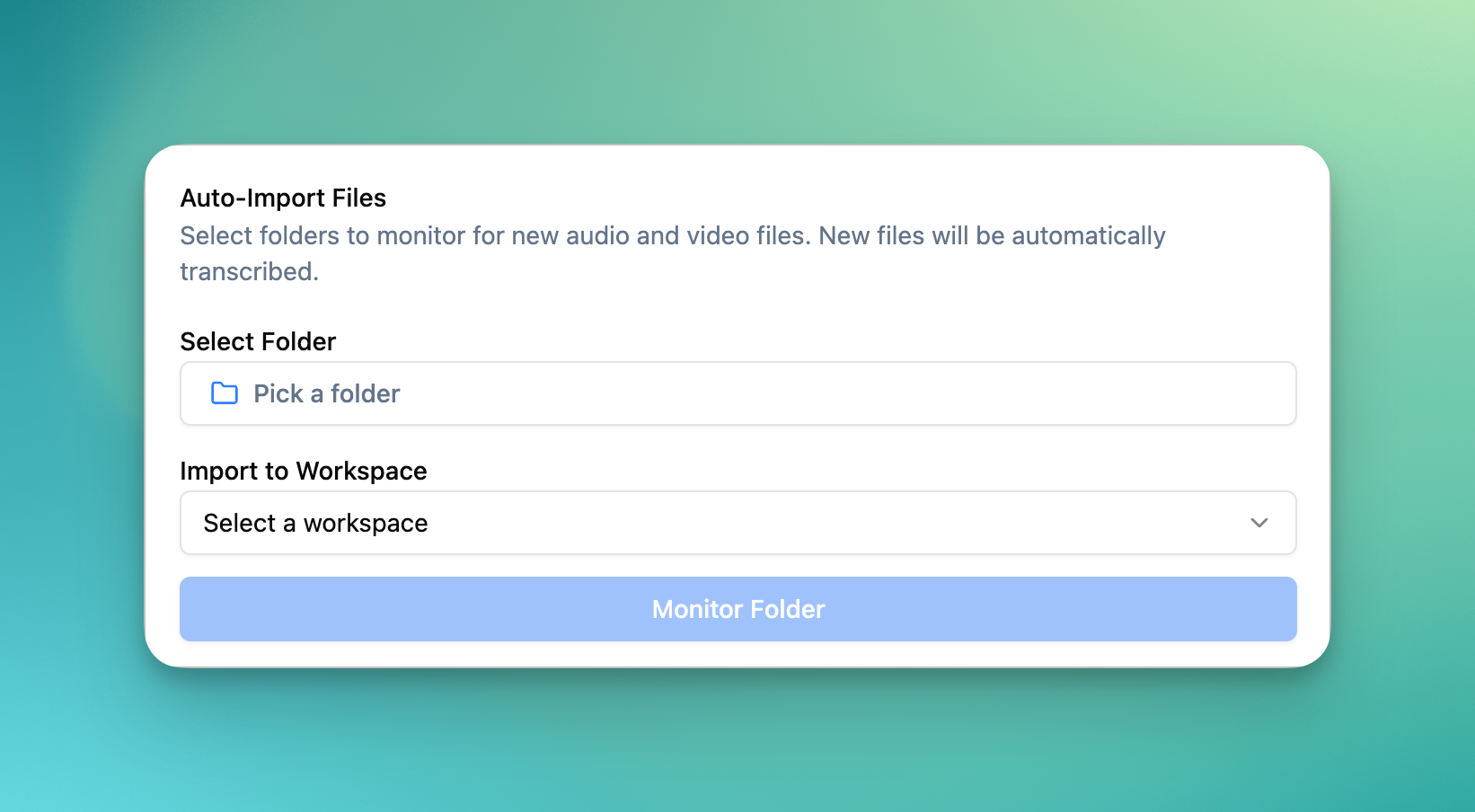
Transcription Options:
Auto imports will use the default language and speaker settings of the workspace they are being imported to.
You can change them at anytime from your workspace settings page.
Automated Imports (Legacy Flow)
This is documentation for our legacy setup for automating imports from Google Drive use no code tools such as Zapier, N8N etc.
Caveats — IMPORTANT
Unlike all other other cloud storage integrations, our Google Drive integration works by sharing your content with our own Google Drive service account to access the content to import content.
This is because Google requires expensive third party audits before we can be approved for automated access to your content. As a small company we cannot afford or justify these certifications for just one integration access.
Share your content with Transcript LOL
This is to give Transcript LOL access to your Google Drive content - selectively or full drive.
Share the folder you want to automate with gdrive@imports.transcript.lol
You may remove access anytime when you don’t need to import content anymore.
Setting up automation
We use Zapier in this example but you can also use any other automation platform like Make or N8N in a similar manner.
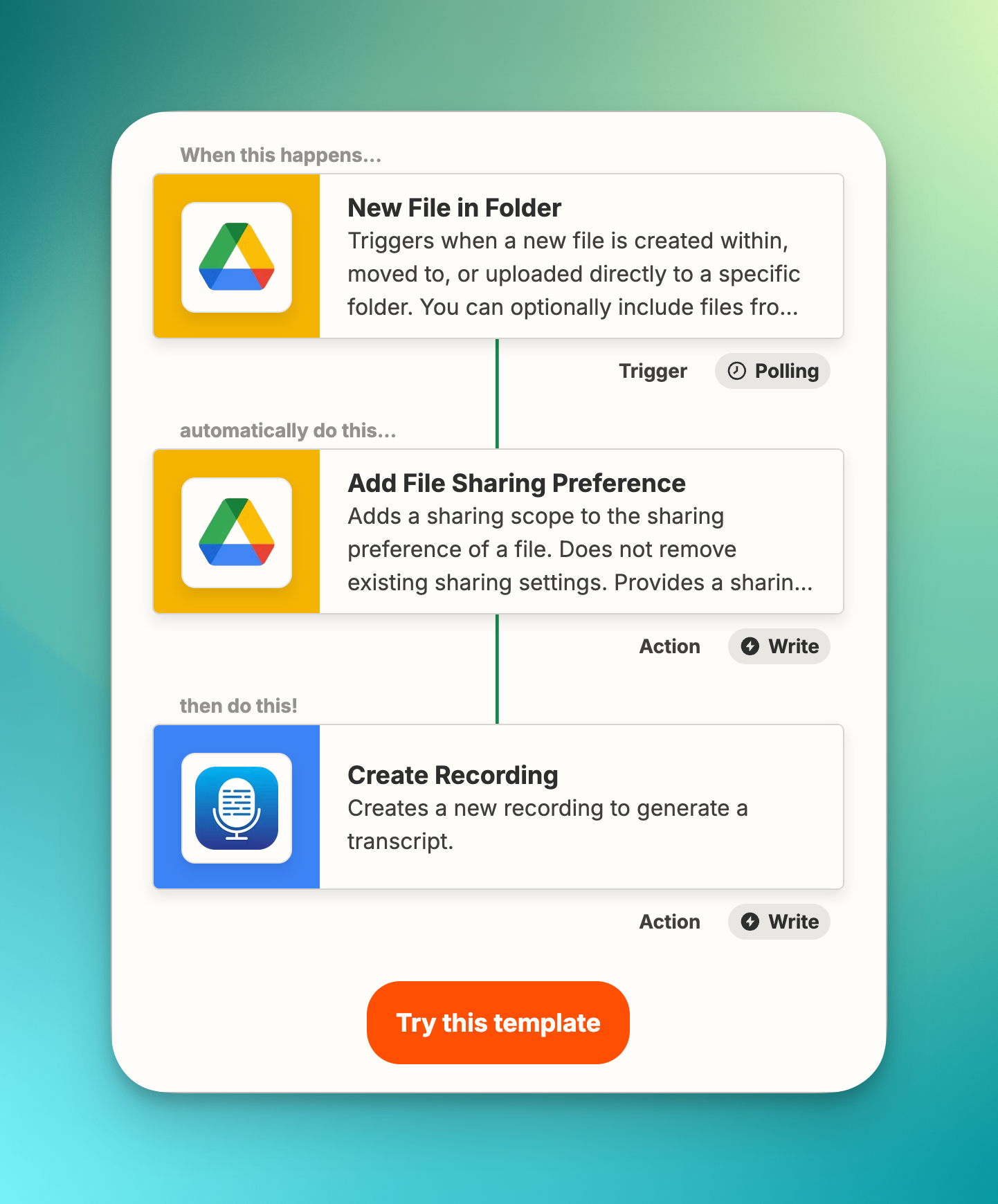
IMPORTANT: Click here to use our official Zapier template to setup an automation
Authenticate your Google Drive account on Zapier
Select the folder to watch
Authenticate your Transcript LOL account on Zapier
Select your Workspace and Language
Save your zap
After this step, Transcript LOL will automatically import and transcribe any new files in the selected Google Drive folder into Transcript LOL.
Known Issues
Unsupported Drive URL error
Make sure you are using the official Zapier template for Google Drive Imports (link above)
Make sure you have the share permissions to our system account (included in the official template)
Make sure you don’t have additional DLP protections enabled on your drive or the content you are trying to import
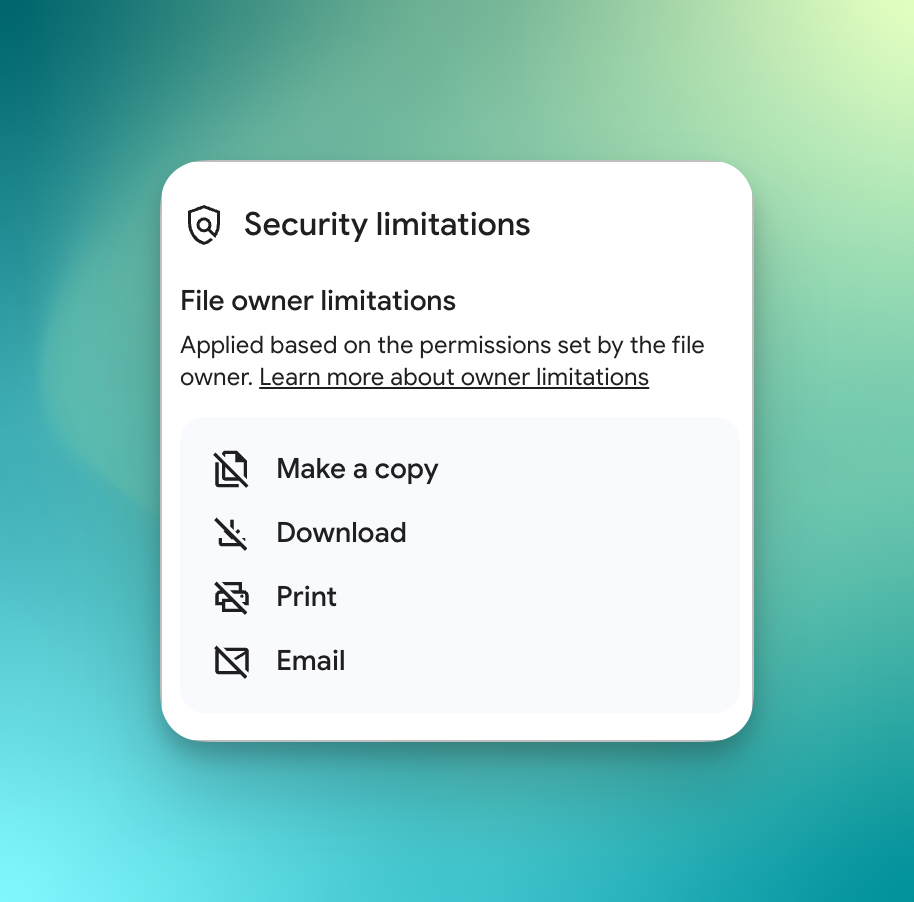
Open your Google Drive web app, pick a file from the folder you are importing from and select details
If you see above security limitations, it means you have DLT restrictions
Learn how DLT restrictions work —
If you see above restrictions, you can try changing to “Editor“ permissions or updating your DLT settings on Google Drive
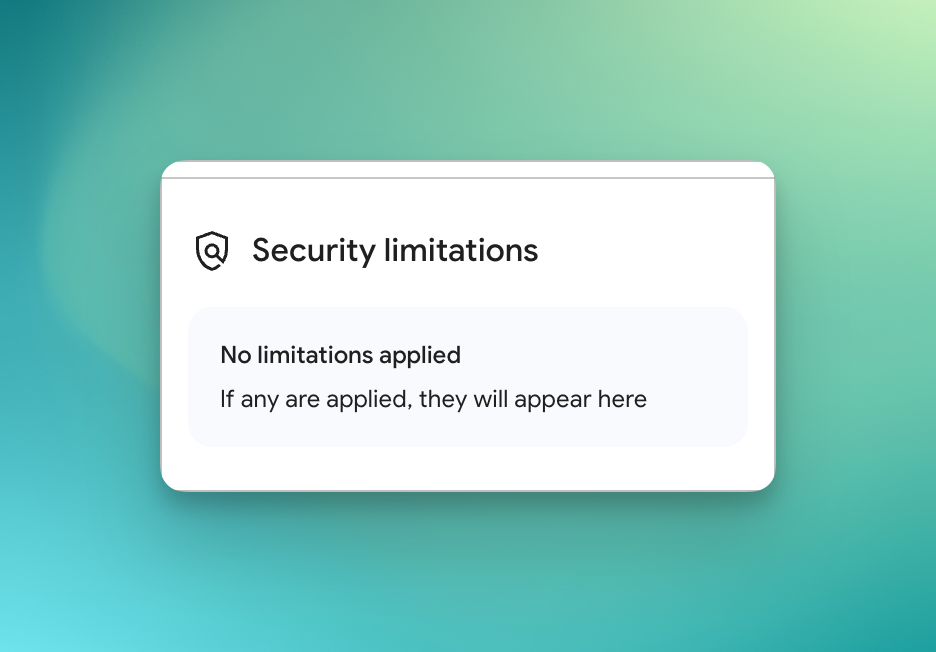
Once it’s resolved, this is what we should see in security limitations
Automated Exports
For automated exports, we have a number of options. Please see the following articles: