
OneDrive Integration
Updated today
Overview
The Transcript LOL ↔ OneDrive integration enables you to import your audio or video files from OneDrive Cloud storage into Transcript LOL and get an accurate Transcription and AI insights such as Summary, Meetings notes, Social Media Posts etc.
Key features:
Manual Importing: Browse your OneDrive storage and select files to import into your Transcript LOL workspace and generate an accurate transcript.
Automated Importing: Enable auto-importing for new files in a folder for transcription
Automated Exporting: Send your transcriptions to other apps using Zapier or API webhooks (see Automated Exports below)
Manual Imports
To manually import files from your OneDrive storage into a Workspace follow these steps:
Go to a workspace and click “Import Audio or Video“
Select “OneDrive” option from the import UI
Authenticate with OneDrive
Select the files you want import from the list
Add the selected files to the importer by clicking the button that shows how many files you selected
Pick the audio language and click “Transcribe“
This will import the selected audio or video from OneDrive into Transcript LOL and generate a transcript and summary etc.
Automated Imports
The automated import flow can be used to create a set and forget workflow automation between OneDrive and Transcript LOL.
1. Connect Your OneDrive Account
This will authenticate your OneDrive account with Transcript LOL
Go to your integrations page
Connect your OneDrive account (if not done already)
2. Setup Auto-imports on a folder
Click “Edit settings“ on the OneDrive integration and then you can:
Select a folder in your drive to watch for new files, then click “Select this folder“
Select the workspace you want files to be imported to automatically
Click “Monitor Folder“ to start watching the selected folder for new files
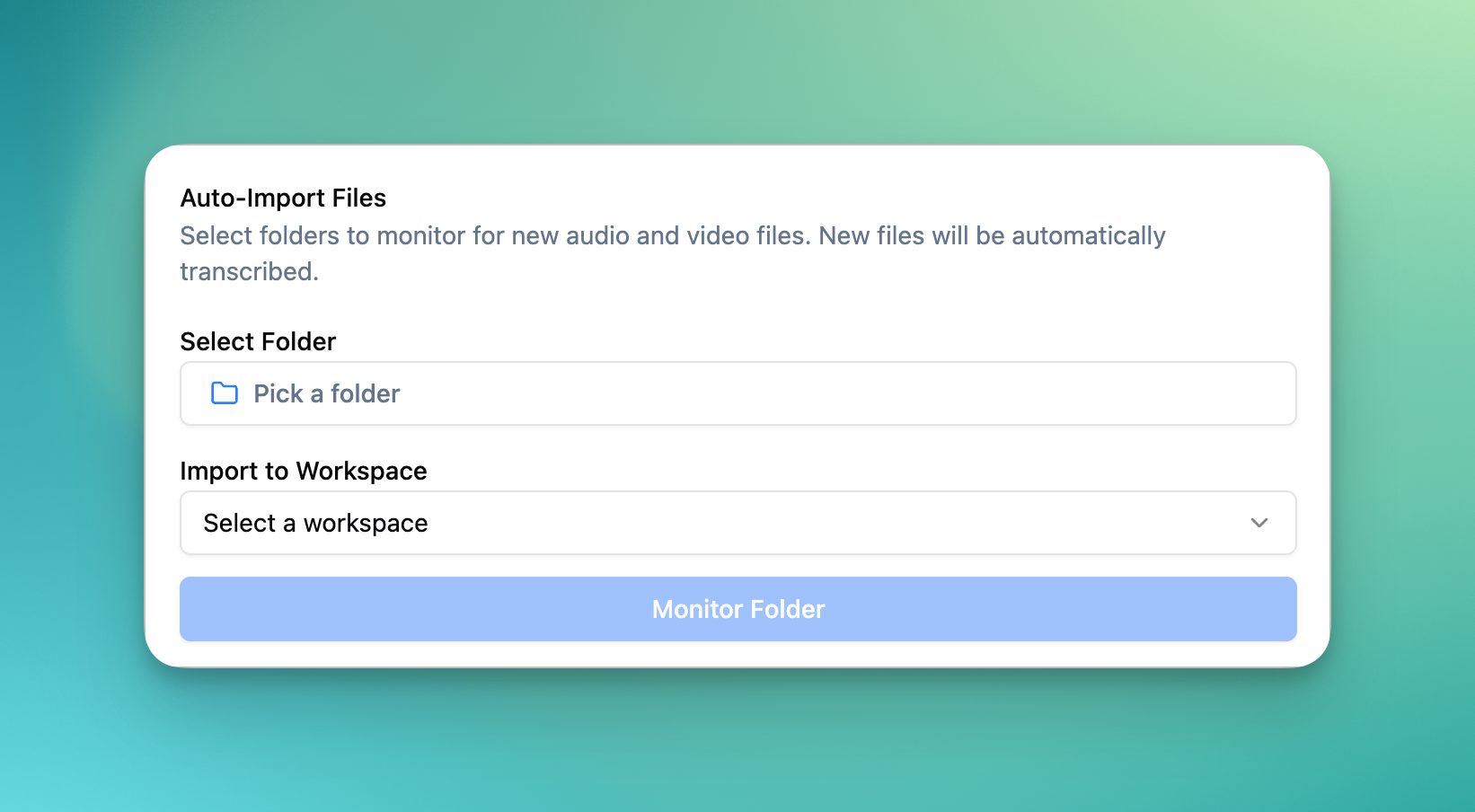
Transcription Options:
Auto imports will use the default language and speaker settings of the workspace they are being imported to.
You can change them at anytime from your workspace settings page.
Automated Exports
For automated exports, we have a number of options. Please see the following articles: