
Exporting Transcripts
Updated today
Exporting a single transcript
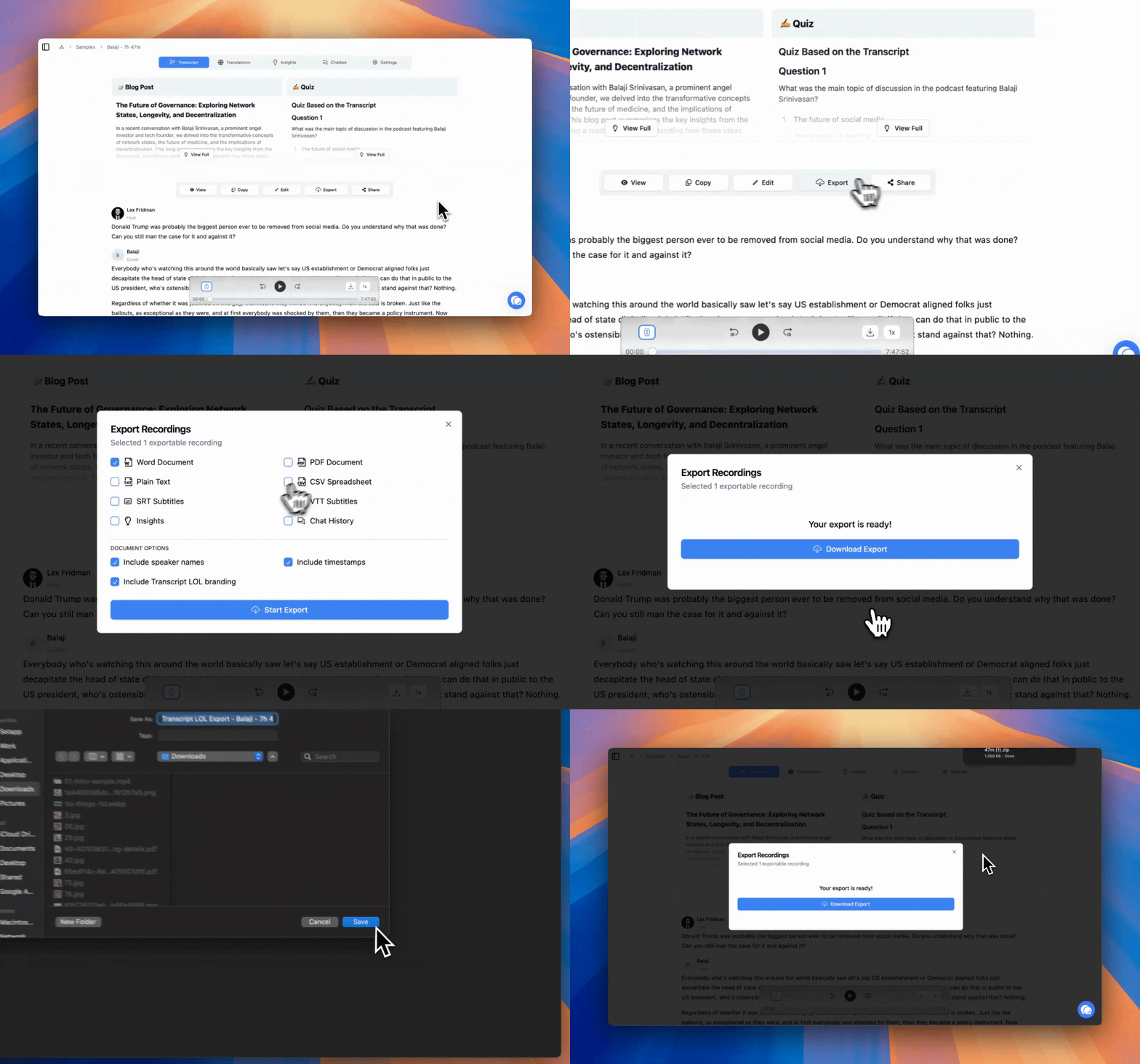
To export a transcript, follow these steps as shown in the short video above:
Open the transcript page for the transcript you want to export
(Optional) Customise document or subtitle options for the export
Click the Download button and choose the format you want to export
The file downloads immediately after you choose a format
You can also use the transcript export interface to also export the following content:
All insights generated from your transcript such as summaries, meeting notes etc.
All chat history and messages
Exporting transcripts in bulk
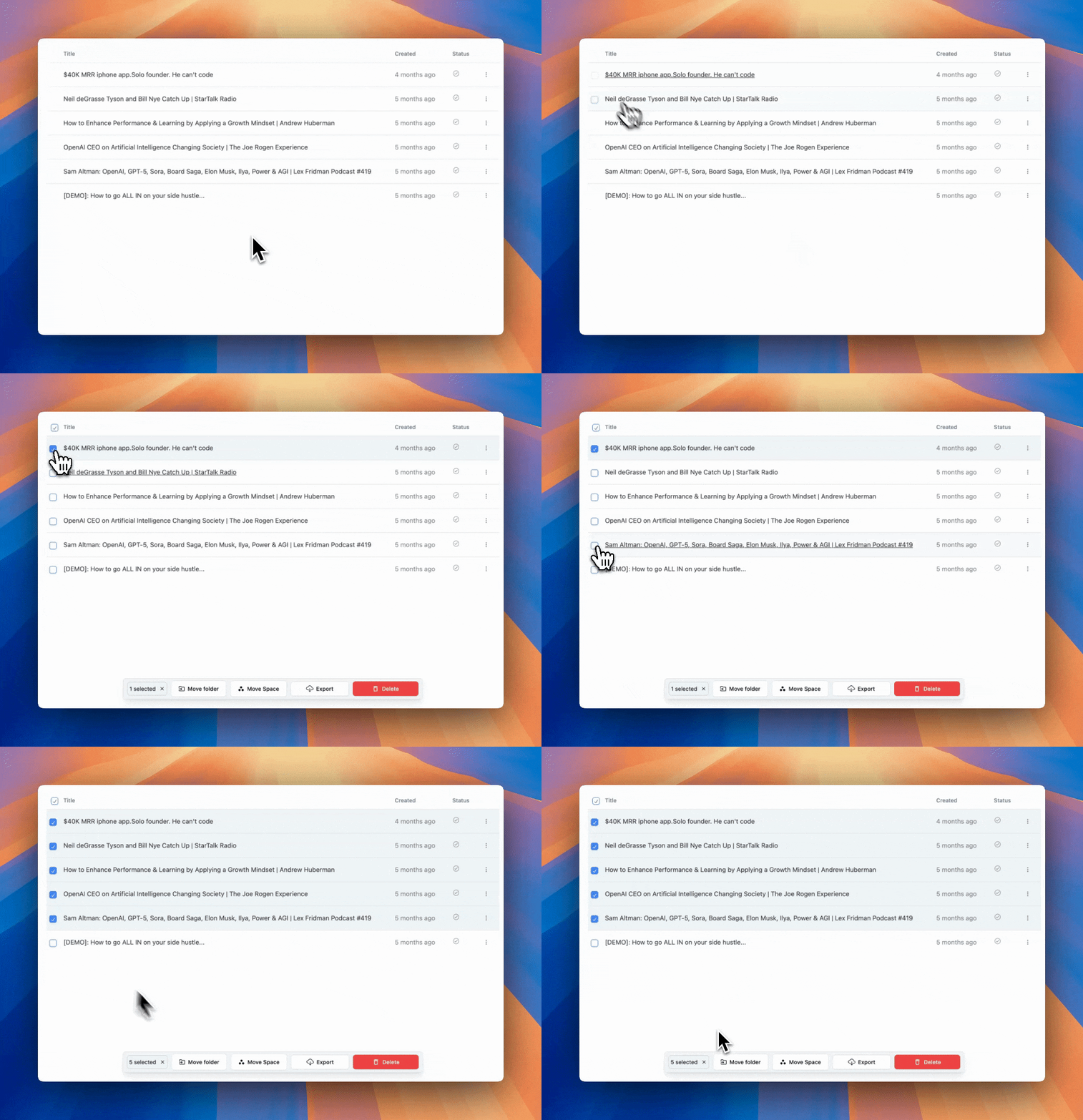
You can select multiple completed transcripts in the workspace or folder list and export up to 100 selected recordings. Selections are limited to the transcripts shown on the current page of the list.
Open the workspace — this will show a list of all your transcripts
Select the transcripts you would like to export
Click the export button in the menu bar — see the video demo
This will open the same interface as a single export. Continue similar to exporting a single transcript.