Transcript in Custom Format
Learn how to format transcripts in the exact style or format you need for your workflow
Written By Praveen Pendyala
Last updated 7 months ago
Introduction
Transcript LOL supports exporting your transcripts in PDF, Word, Text, Subtitle (SRT or VTT) and CSV formats out of the box. Further you can also export the raw transcripts in JSON format using our API (see docs). If you want to further customise the structure or style of the transcript text, this article can help you.
Basic styling
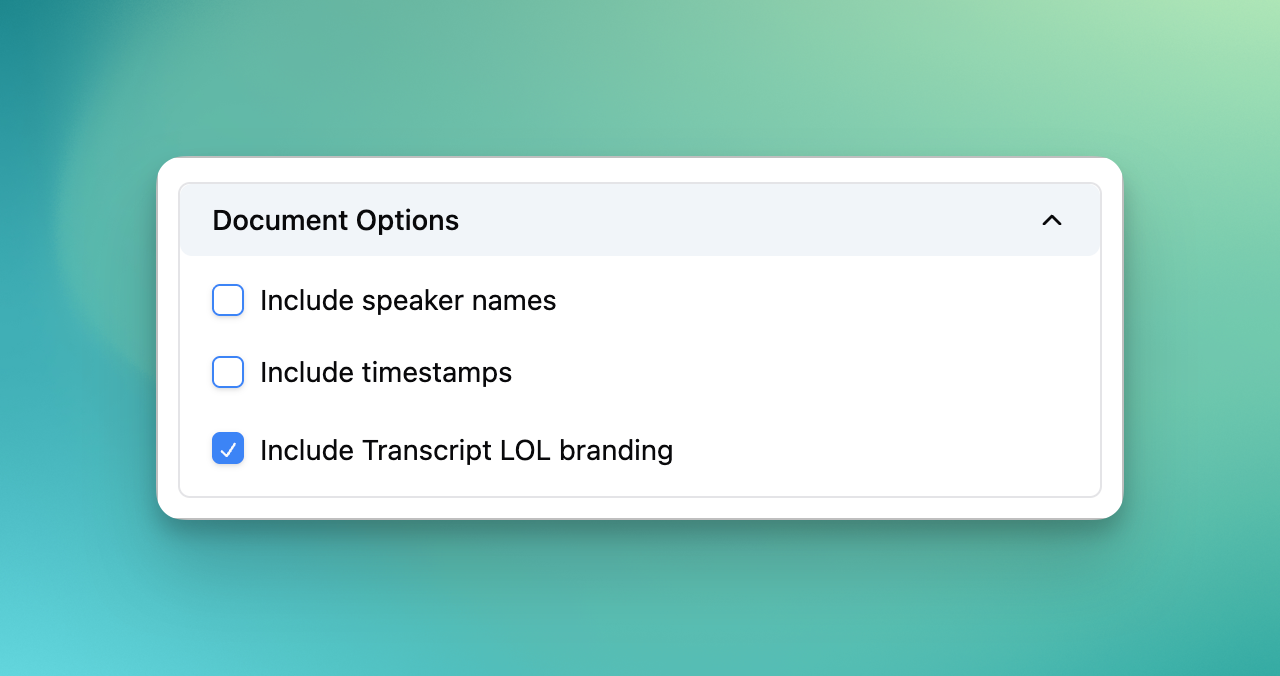
Follow the instructions described in Exporting Transcripts to customise the basic structure of your transcripts. You can use the following settings to edit these basic styling options.
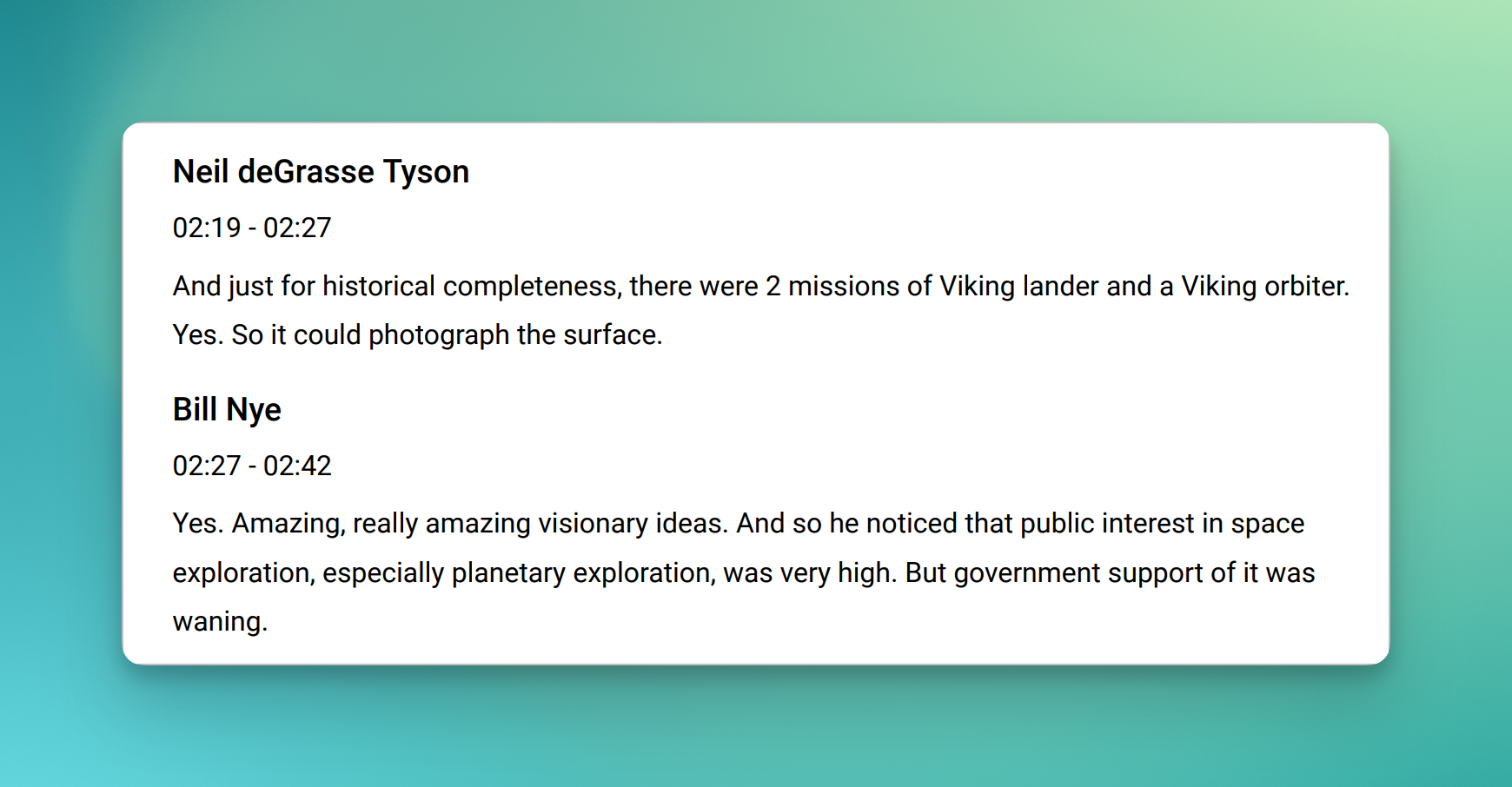
Speaker - Timestamp - Text
This include speaker name, timestamps of the paragraph and the transcription text for that paragraph
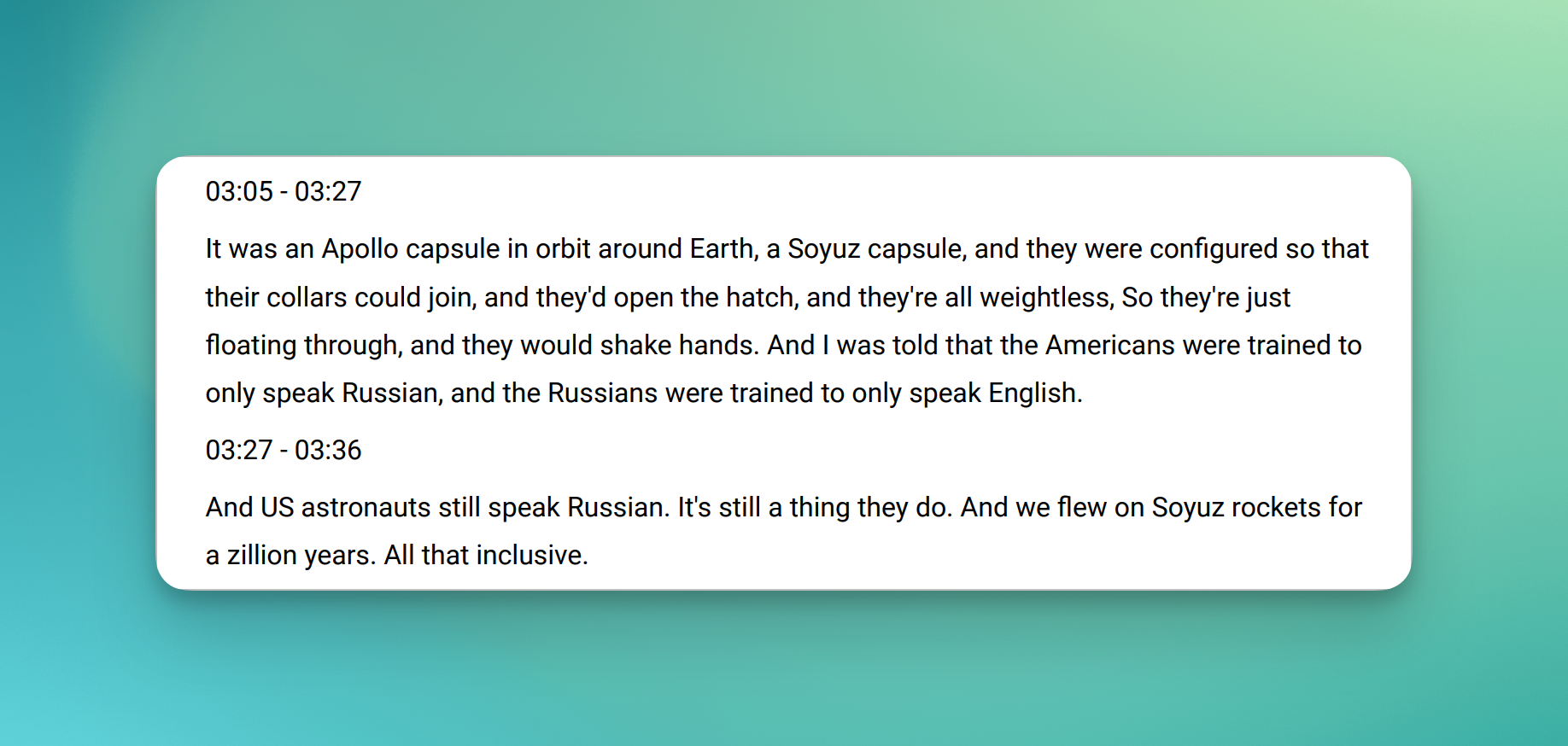
Timestamp - Text
Only includes timestamps and text of each paragraph
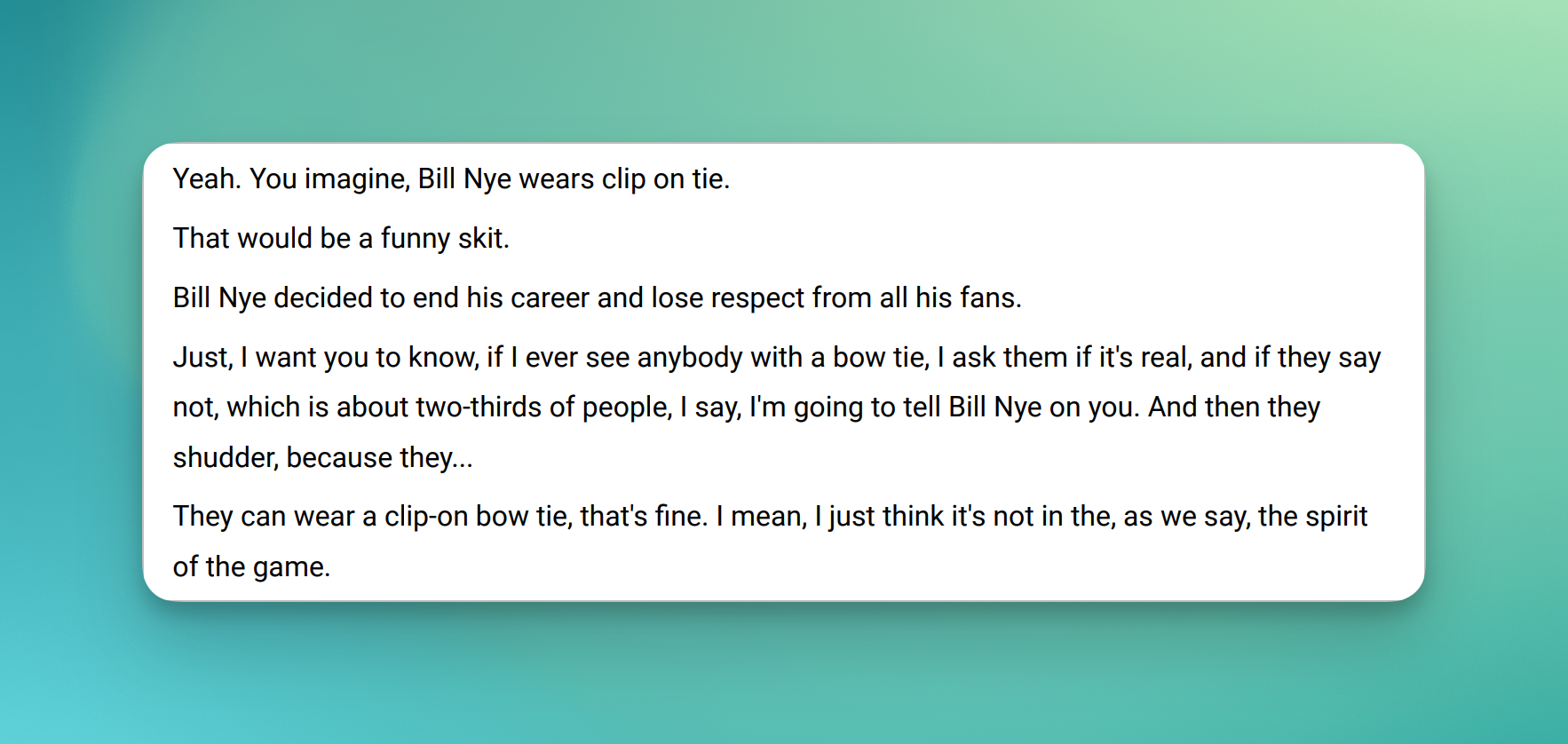
Text only
The output document contains only the transcript text
Paragraph sizes
You can also adjust the size of each paragraph by editing these subtitle options. This gives you control over how long or short you want each paragraphs to be.

Advanced styling
You can also structure or format your transcript in very specific styles. A style that fits perfectly to your workflow as shown in the example below.
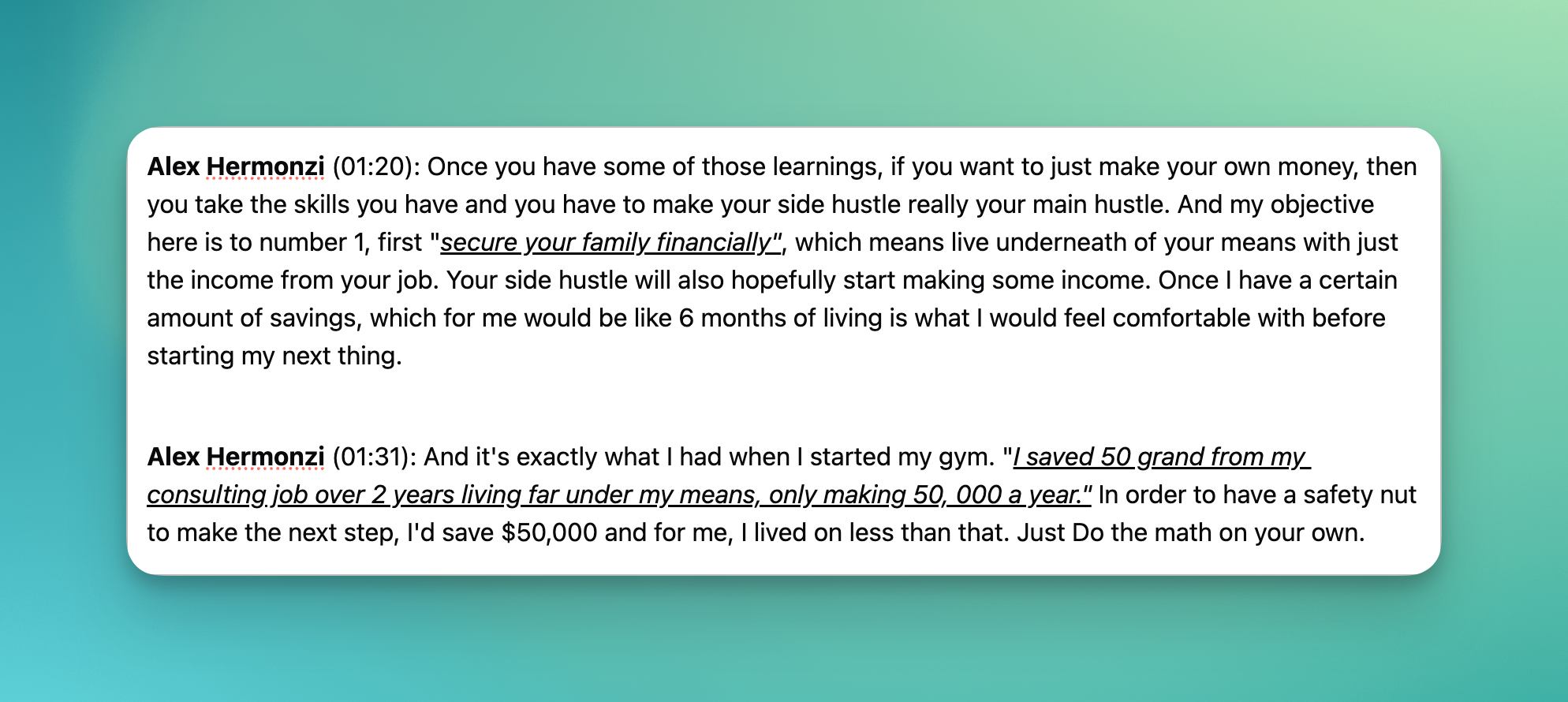
In this example, we requested the transcript to be formatted as per the following rules:
Speaker name (start timestamp): Paragraph text where we highlight only important quotes
Speaker name must be in bold
Timestamp must be in (HH:MM) format with braces around it
Important quotes must be highlighted using double quotes, italic, and underlines
You can get transcripts formatted in a similar way, using your own formatting rules by using our Introduction To Reports feature. To get the above formatting for your own transcript:
Create an empty report
Add a single transcript block and click the settings icon for the transcript
Select “custom format” and input your own formatting instructions
(Optional): Select GPT 5 or similar high intelligence model if your formatting is complex
Click “Save“ and then “Render“ to get the formatted transcript
We strongly encourage you to read Introduction To Reports and learn how to use reports to make the most out of formatting your transcripts and other content too.